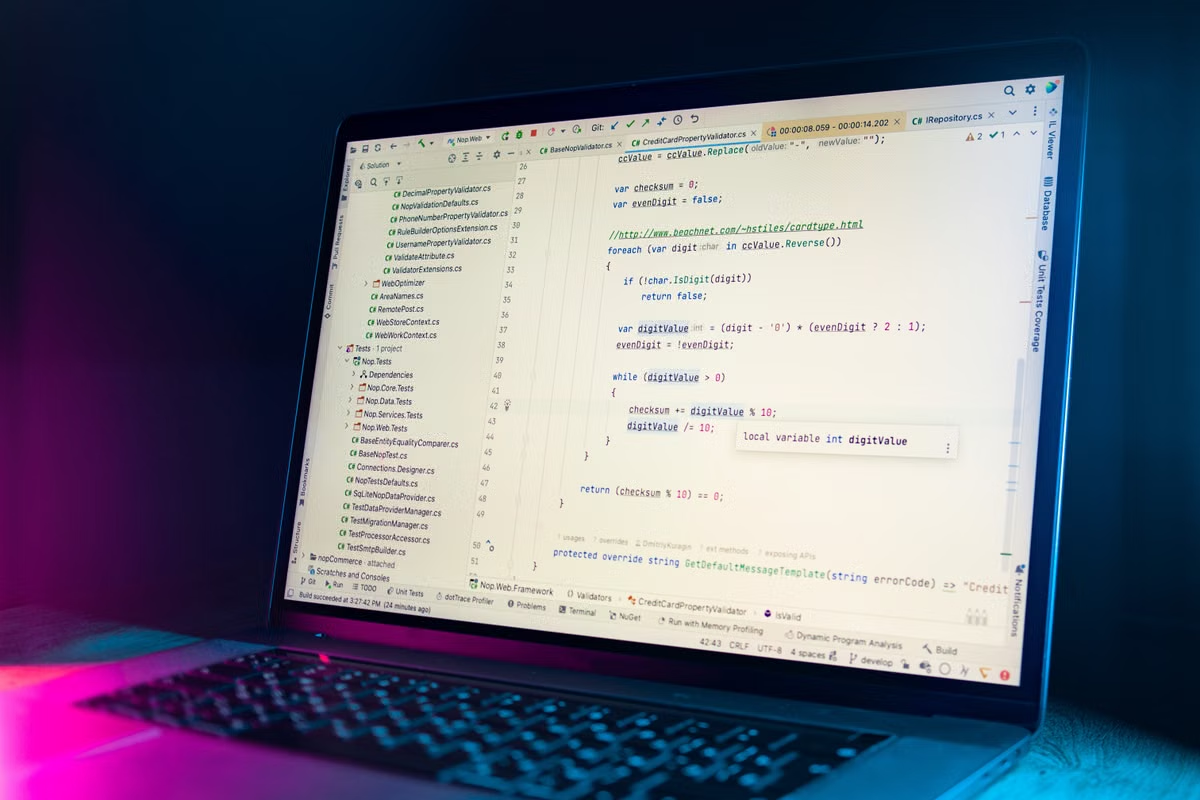
Your Mac is showing deployment logs in one window, while your release script still lives in another. The result is uncertainty about which entry point should own the real workflow.
Fastest answer: use OpenShip Desktop for personal development, temporary deployments, and visual log review. Use OpenShip CLI for scripts, CI, repeatable delivery, and shared team operations. Most remote teams should combine both, with CLI running on an always-online, permission-isolated execution host.
This guide is for:
- Mac developers who prefer a visual workflow for setup, deployment, and logs.
- Engineering teams that need to move release steps into scripts or CI.
- Remote development teams considering a continuously available cloud Mac as a shared build or release endpoint.
Start with the execution location, not the interface
The first decision is not whether a window looks easier than a terminal. It is where the deployment process actually runs.
The official OpenShip model separates the control surface from the deployment target. The platform supports a Desktop App, CLI, and Web Dashboard, while projects can run locally, on your own server, or in the cloud. The same broad deployment workflow is available through different interfaces. (OpenShip download page)
That distinction matters because closing a window does not automatically tell you whether the deployment has stopped. The task may be running in the Desktop process, in a local OpenShip service, in a remote server, or in another execution environment. You must identify that location before making an operational promise.
The official CLI reference documents openship up as a persistent service that starts on boot and auto-restarts. It also documents --foreground as an attached, one-off mode. Those are different execution models, even though both start from the CLI. (OpenShip CLI documentation)
Three practical limits usually appear first:
-
Laptop availability
A process tied to your Mac depends on power, network access, sleep behavior, user sessions, and maintenance windows. A remote teammate cannot treat your personal laptop as a dependable release server. -
Credential exposure
A Desktop workflow may be convenient for one person, but shared operation becomes risky if several people use the same Mac account, token, SSH key, or project access. -
Audit and repeatability
A sequence of clicks can be easy to perform but difficult to review, reproduce, compare, or run after a failed handoff. A command or script can be versioned with the project. -
Log ownership
Seeing logs in a window is not the same as retaining logs for incident review. You need to know whether the logs belong to a local session, a remote deployment, or a persistent service. -
Environment drift
A personal Mac can accumulate local configuration, cached credentials, package versions, and undocumented fixes. That may help an experiment succeed once while making the next release harder to reproduce.
If you are still deciding how much work should stay on your Mac, compare it with a remote execution model in this guide to local versus cloud Mac development.
Can OpenShip Desktop replace CLI?
For a solo developer, often yes. For an automation workflow, no.
OpenShip Desktop is the better first entrance when you are initializing a project, deploying from a local folder, watching live logs, or checking a rollback visually. The official download page describes the Desktop App as a native window for deployments, logs, metrics, and services. It also lists macOS support and a macOS 12 or newer requirement. (OpenShip download page)
That makes Desktop useful in three situations:
- You are learning the deployment flow.
- You deploy manually only a few times each week.
- You need to understand the current state before writing automation.
The visual interface lowers the cost of discovery. You can see projects, deployment state, service status, and logs without remembering every command. This is valuable during the first successful deployment because you are still learning which steps matter.
But Desktop should not become the only record of a release process. If you repeatedly click the same sequence, you have already found a candidate for scripting.
OpenShip CLI becomes the stronger choice when you need:
- A release command that can be reviewed in Git.
- The same deployment process across several environments.
- Non-interactive authentication.
- Machine-readable output.
- CI integration.
- Explicit rollback and log commands.
- A clear failure signal for the next pipeline step.
The official CLI reference documents openship deploy, deployment inspection, rollback management, and log streaming. It also documents a --json flag for machine-readable output, which is more suitable for scripts than terminal-only status text. (OpenShip CLI documentation)
A useful rule is:
If a human must decide what to do next, start with Desktop. If the system should decide whether the next step runs, use CLI.
This does not mean Desktop is unreliable or CLI is automatically safer. It means each surface has a different operational role.
Desktop-first workflows for prototypes and individual developers
The personal developer usually has a short feedback loop. You change code, deploy it, inspect the logs, and decide whether to keep or revert the release. In this phase, Desktop gives you the fastest path from a folder to a visible result.
The official documentation describes folder-based deployment as a supported path. It also describes the Desktop App as suitable for deploying directly from a folder on your computer. (OpenShip project documentation)
Use Desktop first when most of these statements are true:
- [ ] You are the only person who deploys the project.
- [ ] Deployments are occasional rather than routine.
- [ ] You still need to discover the correct environment variables.
- [ ] You review logs interactively after each release.
- [ ] A manual rollback is acceptable.
- [ ] Your Mac is available during the deployment window.
- [ ] You do not yet have a stable release script.
Keep a small CLI verification path even if Desktop remains your daily entry point. Initialize the project through the documented CLI flow, then test the equivalent deployment and log commands. The official quick path uses openship init to link a directory and openship deploy to trigger deployment.
This gives you an escape route when the Desktop App is unavailable, when you need to reproduce a deployment on another Mac, or when a teammate needs to inspect the same project without copying your local click sequence.
For a developer working with AI coding tools, this separation is also useful. Keep the visual review step for human judgment, but put deterministic build and release actions behind commands. You can then document the workflow alongside the project instead of relying on memory.
Script the stable path before your release count grows
Frequent publishing creates a different problem. The issue is no longer whether Desktop is easy. The issue is that repeated manual actions become invisible operational debt.
A common progression looks like this:
- You deploy manually from Desktop.
- You repeat the same environment selection.
- You open the same log view.
- You perform the same health check.
- You roll back using the same control.
- A second person asks how to repeat it.
- You realize the workflow exists only in your habits.
At that point, move the stable path into CLI while keeping Desktop for observation.
Do not script every exploratory action. Script only the steps that have settled:
- Select the target context.
- Validate authentication.
- Link or confirm the project.
- Deploy the current revision.
- Capture the result.
- Stream or archive logs.
- Trigger rollback when a defined condition is met.
OpenShip CLI stores authenticated connection information in ~/.openship/config.json, according to the official reference. It supports named contexts so one machine can connect to different OpenShip instances and switch between them.
That creates both an advantage and a risk. Contexts simplify environment switching, but an incorrectly selected context can send a release to the wrong target. Your script should print the active context, validate the expected API endpoint, and stop if the environment is not the one intended for that job.
A sensible Mac workflow is:
- Use CLI to run the release.
- Use Desktop to inspect the deployment and logs.
- Store the script in the repository.
- Keep environment-specific values outside the repository.
- Test rollback separately from normal deployment.
- Record the exact command and expected output.
Do not describe a Desktop click path as “automation” merely because it is repeatable by a person. A release is auditable only when another operator or machine can understand what ran, against which target, with which credentials, and with what result.
Is OpenShip CLI suitable for CI publishing?
Yes, the official CLI documentation explicitly describes scripting in CI and provides a non-interactive token login path. The reference documents Personal Access Tokens, openship login --token, API and dashboard endpoint flags, and JSON output for scripts.
That makes CLI the default choice for a team that needs unattended delivery. However, “the CLI can run in CI” is only the first technical requirement. Your pipeline also needs a controlled execution environment.
Before connecting OpenShip CLI to CI, complete these steps:
1. Define the release boundary
Decide what CI is allowed to do. A preview deployment, staging deployment, and production rollback should not automatically share the same token or permissions.
2. Create a dedicated credential
Use a token created for the pipeline rather than a developer’s personal token. The official documentation states that a newly created token is shown only once and can be revoked through the platform’s token management flow.
Store it in the CI secret store. Do not place it in a shell script, repository file, issue comment, or shared Desktop profile.
3. Pin the target context
Use explicit API and dashboard endpoints. Do not rely on a default local context if the job is meant to reach a remote instance.
4. Use machine-readable output
Where supported, use --json and pipe the result into your CI logic. Human-readable spinners are useful for a developer but fragile as a machine contract.
5. Define failure handling
A failed deployment should stop the pipeline. A successful command should not be treated as proof that the application is healthy. Add a post-deploy check that matches your application’s actual readiness condition.
6. Test rollback separately
A rollback path that has never been tested is only a hope. Run it in a non-production environment first, then document who can invoke it and what state it restores.
7. Retain logs outside the terminal
The CLI can stream logs, but your team still needs a retention policy. Decide which deployment output belongs in CI artifacts, which logs remain on the target, and how long an incident record must be available.
For deeper planning, connect this workflow with a remote Mac development setup, especially if your team needs Mac-specific build tools as well as deployment commands.
Remote teams need a controlled CLI execution host
A remote development team should install OpenShip CLI on the machine that owns the repeatable release process, not automatically on every developer Mac.
There are three common choices:
Developer Mac:
Good for local testing and emergency operation. Poor as the shared production release endpoint because it depends on one person’s availability and local state.
CI runner:
Good for repeatable, event-driven publishing. The runner needs network access, stored secrets, the correct runtime, and a clear log retention policy.
Always-online cloud Mac:
Useful when the team needs a shared Mac environment for builds, signing, deployment preparation, or tools that are not convenient on a generic Linux runner. It should use a dedicated account, isolated credentials, and controlled remote access.
The execution host should meet these checks:
- [ ] It remains available during the team’s release window.
- [ ] It has a dedicated system or service account.
- [ ] Its OpenShip context is named for the environment.
- [ ] Its token is separate from every human token.
- [ ] Its SSH access is limited to the required targets.
- [ ] Its logs are accessible to authorized team members.
- [ ] Its sleep, reboot, and update behavior is documented.
- [ ] A second operator can run or recover the workflow.
A cloud Mac is not automatically a secure shared runner. If every teammate connects through the same administrator account, you have only moved the permission problem to another location.
This is where team credential and access isolation becomes part of the deployment design rather than an afterthought.
Will deployment stop when Desktop closes?
You cannot answer this from the interface name alone.
The correct answer depends on the process that currently owns the task:
- If the Desktop App is directly running the operation on your Mac, closing it may affect that operation.
- If the Desktop App has triggered work handled by a persistent local service, the result may differ.
- If the deployment has already moved to a remote execution service, closing the window may only remove your observation view.
- If the CLI is running in foreground mode inside a terminal, ending that process can affect the command.
- If the CLI started a persistent service with
openship up, that service has a different lifecycle from an attached terminal session.
The official CLI reference explicitly distinguishes persistent service mode from foreground mode. It also states that openship up starts on boot and auto-restarts, while --foreground is intended for an attached run.
Before closing Desktop or a terminal, check:
- [ ] Which process started the deployment?
- [ ] Is the task local, remote, or service-backed?
- [ ] Is the current window showing logs or owning the process?
- [ ] Does the deployment appear in the remote deployment history?
- [ ] Can another session retrieve the same logs?
- [ ] Is the local Mac still needed for the build or file transfer?
Do not promise your team that “closing the app is safe” until you have tested the exact architecture and task type. The official documentation confirms the available interfaces and service commands, but it does not justify a universal rule for every deployment arrangement.
Operational reminder: Treat “the window is closed” and “the deployment process is stopped” as two separate events. Verify the execution owner before changing your runbook.
Can one cloud Mac run both OpenShip Desktop and CLI?
Yes, a single Mac can be used for both entry points, provided you separate their roles and avoid competing workflows.
A productive shared arrangement is:
- CLI: owns scripted deployment, CI jobs, scheduled actions, and repeatable rollback commands.
- Desktop: provides visual observation, manual inspection, interactive troubleshooting, and occasional recovery.
- Separate contexts: keep development, staging, and production targets clearly named.
- Separate credentials: use a service token for automation and individual access for human inspection.
- Separate working directories: avoid having a manual Desktop deployment and automated CLI deployment operate on the same mutable folder at the same time.
The main danger is not that both tools exist on one Mac. The danger is that two operators believe they own the same release state.
Use a simple ownership rule:
- CI or the release script is the default publisher.
- Desktop is read-first for status and logs.
- Manual deployment requires an explicit reason.
- Emergency changes are recorded after the fact.
- Production rollback has one approved command path.
The official documentation describes the Desktop App and CLI as different ways to drive the same platform, while the CLI reference documents contexts, tokens, deployment commands, and log access. That supports a combined workflow, but your team still needs to define who may publish and who may only observe.
Five steps to choose and implement your workflow
Step 1: List the actions you repeat
Write down initialization, deployment, log review, rollback, domain changes, and environment switching. Mark each action as manual, scripted, or undecided.
Step 2: Identify the person or machine that owns each action
If only you perform an action, Desktop may be acceptable. If several people or a pipeline perform it, move it toward CLI.
Step 3: Prove the execution location
Run one deployment and record where the build, transfer, and service process occur. Do not infer this from the presence of a Desktop window.
Step 4: Create the smallest safe automation
Start with one command that can deploy a known project. Add explicit context selection, token handling, JSON output, and failure checks before expanding the script.
Step 5: Test interruption and recovery
Close the interface only after confirming the process owner. Disconnect the observing session, reconnect, retrieve logs, and test rollback. Document the result for the next operator.
This process is more valuable than choosing a tool based on interface preference. It turns an ambiguous Desktop-versus-CLI debate into a measurable operational decision.
Decision table for Desktop, CLI, and hybrid teams
| Team situation | Primary entry point | Execution host | Credential approach | What Desktop should do | Migration trigger |
|---|---|---|---|---|---|
| Solo developer with occasional releases | OpenShip Desktop | Personal Mac | Individual credential with limited scope | Deploy, inspect logs, review rollback | Repeated releases or second operator |
| Temporary AI SaaS prototype | Desktop first, CLI verification | Personal Mac or test Mac | Separate test credential | Explore configuration and diagnose failures | Stable release steps emerge |
| Independent developer publishing frequently | CLI for release, Desktop for review | Developer Mac at first | Personal token for local use; separate automation token later | Observe status and investigate logs | Laptop availability becomes a release risk |
| CI and batch delivery team | OpenShip CLI | CI runner or dedicated service host | Pipeline-only token, stored in secret manager | Read-only operational observation | More environments or stricter audit needs |
| Cross-time-zone remote team | CLI automation plus Desktop observation | Always-online shared execution host | Per-user access plus isolated service credential | Monitor and troubleshoot without owning automation | Shared host becomes over-permissioned |
| Security-sensitive team | CLI as controlled path | Dedicated, isolated execution host | Least-privilege tokens and separated SSH access | Limited inspection and approved recovery | Need for stronger audit or credential rotation |
Final recommendation for your Mac deployment setup
If you are a solo Mac developer, choose OpenShip Desktop first and keep OpenShip CLI ready for verification. It reduces setup friction without trapping your workflow in manual clicks.
If you publish often, make CLI the release authority and keep Desktop as the observation layer. This gives you repeatability without giving up visual diagnosis.
If you work in a remote development team, do not make one person’s Mac the hidden production server. A personal Mac creates three real weaknesses: it may be offline when another time zone needs it, its local credentials may be broader than the team requires, and its deployment history may depend on one operator’s session. A continuously available execution host with isolated permissions is easier to hand over, monitor, and recover.
That is also where renting a Mac from Hashvps can be more practical than stretching a developer laptop into a shared release machine. You get a dedicated environment for automation, remote access, and team handoff instead of relying on one person’s battery, network, login session, and local configuration. It is not the right choice for every workload: long-running stable production systems may justify owned infrastructure, and teams that need direct physical peripherals may need local hardware. But for temporary Mac build capacity, shared CI execution, or a remote OpenShip CLI endpoint, the managed Mac path removes several operational weaknesses that Desktop-only workflows leave unresolved.
Run Your Mac Workflows on Hashvps
Rent a dedicated remote Mac and give every team member a consistent development environment.
Keep builds, deployments, and long-running tasks running on an always-available Mac.