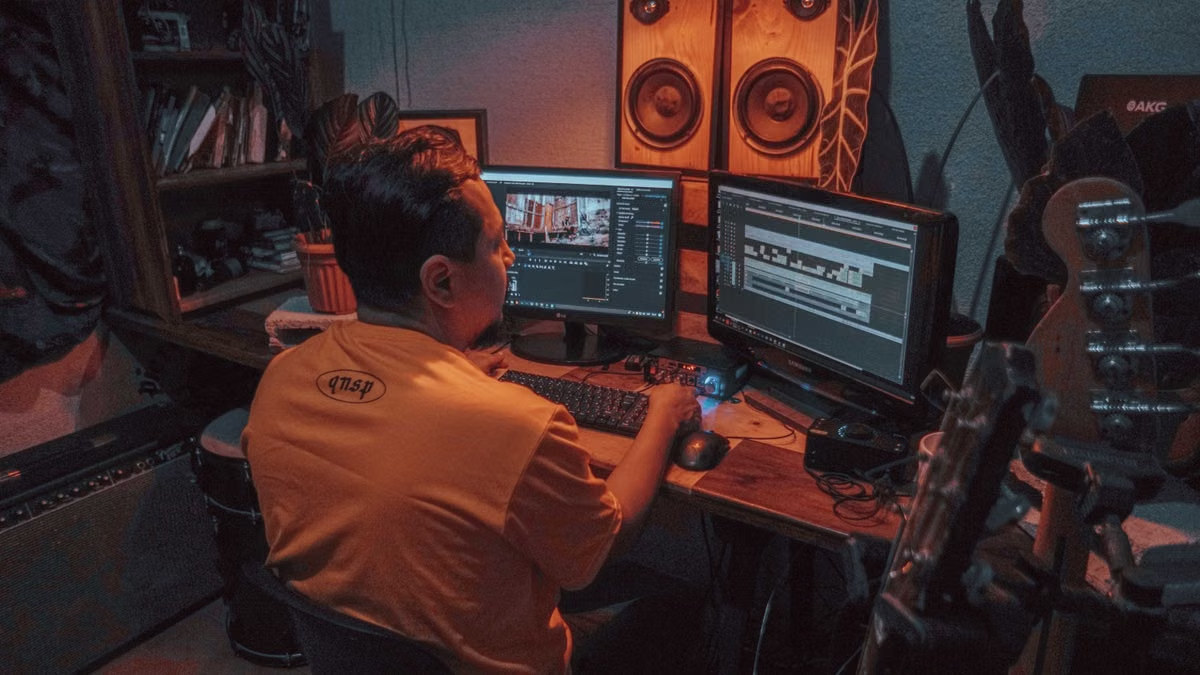
Apple lists the Mac mini M4 with unified memory options of 16 GB, 24 GB, and 32 GB (Apple’s technical specifications). That range is a useful reminder: the model name alone cannot tell you whether your 4K editing workflow will run well. This week, check your own footage, effects, and intended configuration against a representative Final Cut Pro project. The export, memory, and playback results need to come from that test—not from an assumed benchmark.
This guide is for you if you’re considering a Mac mini M4 for 4K editing, already own one and want to assess Final Cut Pro, or are comparing local editing with a remote Mac environment. If you need a specific export-time claim, note that no verified Mac mini M4 test log or results were provided for this article. It would be misleading to invent one. Instead, you’ll find a reproducible test plan and clear criteria for deciding whether the results from your own system are acceptable.
Mac mini M4 4K editing: test boundaries
A useful test begins with the exact machine and project—not just the processor name. Memory configuration can differ, and your editing workload may include camera originals, multicam footage, third-party effects, graphics, audio processing, and background exports. Any of those can make a test of a simple timeline a poor predictor of your own work.
Apple’s specifications also distinguish the M4 Mac mini’s hardware media support, including acceleration for H.264, HEVC, ProRes, and ProRes RAW. That describes supported media capabilities; it does not guarantee a particular export time or uninterrupted playback for every file using those codecs. A camera’s recording profile, frame rate, chroma subsampling, bit depth, and effects can all affect how much work the application must do.
To compare results, record these details before you begin:
- Machine: M4 model and installed unified memory. Include the storage device used for the library and media.
- Software: macOS version and Final Cut Pro version. Apple’s Final Cut Pro technical specifications are a reference for supported systems and features; verify the version actually installed on your test machine.
- Footage: source codec, resolution, frame rate, bit depth if known, and whether files are camera originals, optimized media, or proxies.
- Timeline: project duration, number of active video and audio layers, and the effects actually enabled.
- Export: output resolution, codec, quality or bitrate setting where available, and whether background tasks were running.
- Observations: elapsed export time, Activity Monitor memory pressure during a defined editing session, and playback interruptions on a named timeline section.
Without those details, “M4 export speed” is not a reproducible result. If a reviewer gives a time without naming the project and output settings, you can’t reliably map that number to your own work.
Export speed: measure the project, not the chip
A credible answer to “How long will a 4K export take?” needs a completed export under disclosed conditions. There is no verified elapsed time in the information available for this article, so no specific duration should be presented as a Mac mini M4 result.
Your own measurement can still give you a practical answer. Choose a representative section of a project, or the complete project if that is what your deadlines depend on. Keep the timeline, output settings, and media unchanged. Start timing when you initiate the export and stop when the file is complete and available for review. Record whether the export ran while you were editing or while the machine was otherwise idle. Repeat the same test under comparable conditions; a single result can be affected by background rendering, other applications, or media preparation.
Apple’s Final Cut Pro export settings guide explains the available export controls. Use it to confirm what you selected, but treat your own elapsed time as specific to that project and configuration. An export using a different codec, resolution, or quality setting is not a like-for-like comparison.
When the measured result seems slow, investigate the workload before blaming the computer:
- Compare a camera-original export with one using proxy or optimized media, while keeping the output settings consistent.
- Temporarily disable demanding effects and compare the result. This helps identify whether the timeline’s processing load is the main constraint.
- Check whether the library or media is stored on a drive that is busy, disconnected, or otherwise struggling to supply files.
- Close unrelated work and note whether background rendering or another task changes the result.
Final Cut Pro supports creating optimized and proxy media. Apple’s guide to optimized and proxy media describes that workflow. It can help you test a lighter editing path, but proxy playback is not proof that a full-resolution export will take the same time. Keep those measurements separate.
Memory usage: watch pressure across a session
A memory figure without a workload and observation period is easy to misread. A project may use more resources as you add layers, load effects, browse a large library, or leave an editing session open. The useful question is not simply “How much memory did Final Cut Pro use?” It is whether the system stays responsive under the way you actually edit.
Use Activity Monitor’s Memory tab while you perform repeatable tasks: open the project, scrub through a complex section, play it, apply an effect, and begin an export. Record the displayed memory pressure and whether the system becomes slower during those tasks. Apple explains the memory information shown in Activity Monitor. Use its pressure indicator as a system-level signal; don’t treat one app’s reported memory use as the entire system’s condition.
Compare the actual machine configuration with the project you expect to edit. Apple’s stated 16 GB, 24 GB, and 32 GB options are configuration facts, not a universal recommendation for every editor. If you’re comparing machines, confirm the memory installed in the specific one you would buy. Don’t assume that two Mac mini M4 units have identical memory capacity.
Look for a pattern rather than a one-off reading. If pressure rises while you work and playback or interface response also deteriorates, repeat the task after closing unrelated applications. Then test a version of the project with fewer active effects or with proxy media. If the change helps, it tells you something about the workflow’s resource demand. It does not establish that every project—or every configuration—will behave the same way.
Large libraries introduce another factor: storage. Apple’s guidance on storage devices and Final Cut Pro covers supported formatting considerations. Make sure the drive containing your library and media is connected and formatted appropriately. Keep libraries and source media in a known location while testing; otherwise, missing or slow-to-load media may confuse your assessment of memory pressure.
Timeline playback: separate decoding from effects
“Stutter” can describe several different problems: delayed playback, interrupted playback, dropped frames, or a pause while the application catches up. Record what actually happens and where. A general impression after a brief edit session is not enough to diagnose the cause.
Start with a section that represents your normal work. Note the source media type, the number of active layers, and the effects applied. Play the section at the playback quality you intend to use, then scrub through it and watch for interruptions. Apple’s Final Cut Pro playback quality guidance describes playback-quality controls. If you change a setting, record the new setting; playback observations are only comparable when the conditions match.
Now isolate likely causes rather than changing several things at once:
- Disable effects on the problem section and test playback again. A clear change points toward the effect load.
- Test a proxy version of the same media. If playback improves, the original media’s decoding demands may be part of the issue.
- Pause background rendering or other concurrent tasks, then retry the same section.
- Check that the media is available from the intended drive and that the drive remains connected.
- Restore the original project conditions before deciding whether the workflow meets your delivery requirements.
Proxy playback can be a sensible editing choice, especially when camera originals make a complex timeline harder to review smoothly. But it changes the editing condition. Keep a separate test for full-resolution export and final review. If your work depends on monitoring the original media continuously, proxy playback alone cannot demonstrate that the Mac mini meets that requirement.
Workload comparison: match the machine to the edit
Use this comparison to decide what to test next. These are workload categories, not claims that a specific M4 configuration has passed or failed them.
| Workload or choice | What it can tell you | Decision signal |
|---|---|---|
| Simple timeline with supported media and few effects | Whether basic playback and export meet your own expectations | Proceed only if the exact project and output test meet your deadline |
| Original media with layered footage or demanding effects | How your most resource-intensive normal work behaves | Test playback, memory pressure, and export before committing to a workflow |
| Proxy or optimized-media editing | Whether a lighter editing path improves timeline response | Useful if proxy-based editing fits your process; verify final export separately |
| Local editing on the Mac you plan to use | Whether your installed memory, storage, and software suit the project | Best evidence for a purchase decision when the test uses representative footage |
| Remote Mac workflow | Whether remote access, media transfer, and playback suit your work | Test your connection and full workflow; remote access does not remove codec or effects demands |
The table helps you choose the next experiment, not predict a performance score. If you edit primarily with camera originals and heavy effects, test that exact combination. If your work normally uses proxies, test the proxy workflow and final export too. A short, lightweight project is a poor stand-in for a deadline-critical production.
Decision checklist: convert results into a workflow choice
Use these checks with a representative project before you rely on the Mac mini for client work or a purchase decision:
- [ ] Match the configuration. Confirm the memory installed in the machine you will use. Record the media and library drive as well.
- [ ] Match the footage. Identify the codec and recording profile of your actual source files. Don’t substitute easy-to-play sample footage for demanding camera originals.
- [ ] Match the timeline. Include the layers, effects, titles, and audio processing that are normal for your work.
- [ ] Measure playback. Test the same timeline section at your intended playback quality. Note interruptions and any change after adjusting one factor.
- [ ] Observe memory pressure. Watch Activity Monitor during the same editing tasks, not just immediately after opening the application.
- [ ] Time an export. Use the output format and quality you actually deliver. Record the complete conditions and repeat the test.
- [ ] Check the workflow alternative. If proxies improve editing, decide whether proxy generation, storage, and final review fit your schedule.
- [ ] Set a pass condition. Decide in advance what export time, playback behavior, and resource pressure you can accept. If the test misses that condition, change one part of the workflow and test again.
Apple’s Final Cut Pro support pages can help you verify software settings, media handling, and playback controls. For planning a remote setup, you can also review Hashvps’s service package information and help resources. Check the actual offer details before relying on them; this article does not assume a particular remote configuration, delivery method, or test result.
FAQ
Is the Mac mini M4 enough for 4K editing in Final Cut Pro?
It may be, if the exact memory configuration and workflow suit your footage and timeline. Test your real project, not a generic sample. Check playback, memory pressure, and a complete export. If the workflow meets your own delivery and review requirements, that is stronger evidence than the model name alone.
How long does a 4K export take on a Mac mini M4?
There is no verified export time available here. Codec, effects, timeline content, and export settings can all change the result. Time a representative project with fixed settings, then repeat under similar conditions. Treat the result as evidence about that project and configuration, not a general M4 benchmark.
Does Final Cut Pro use a lot of memory during 4K editing?
It depends on the project and what else is running. Check Activity Monitor’s memory pressure during representative editing tasks, and note whether the system slows down at the same time. A single memory reading does not establish a problem or prove that a configuration is sufficient for every project.
Will the Mac mini M4 stutter during 4K editing?
Playback interruptions depend on the media, timeline, effects, background tasks, and storage path. Test a representative section, then disable effects or try proxy media one change at a time. Record the playback conditions and what changes. Don’t generalize from proxy playback to full-resolution export.
Your next move: test before you commit
Compare your footage codec, timeline complexity, effects, and memory configuration with the test conditions you can reproduce. A local Mac is the clearest choice when you need dependable access to the same machine, especially for sustained work or peripherals connected directly to it. A remote Mac may suit a temporary project or a workflow you want to validate before committing, but it adds dependence on remote access and media transfer; it won’t automatically remove decoding or effects bottlenecks.
If your current setup means moving large media between machines, working around a configuration you can’t verify, or accepting playback and export behavior you haven’t tested, a Hashvps Mac rental can be one way to trial a Mac workflow without treating an unverified benchmark as a purchase decision. First confirm the available configuration and test it with your own representative project. If you still can’t reproduce the workload or you need long-term, sustained access to a fixed local setup, evaluate a locally owned Mac instead.
Test Your 4K Workflow on a Cloud Mac mini
Choose Hashvps’ 24GB memory and 512GB storage tier for more room to evaluate demanding editing projects.
Run a real Mac mini with macOS remotely and test your own footage, timeline playback, and export settings.